





Apple CarPlay Troubleshooting Before a Service Visit
Few things are more frustrating than a failed phone connection that interrupts navigation, music, calls, or hands-free functions. Symptoms may appear on the vehicle’s center display and often trace back to a simple connection or vehicle setting.
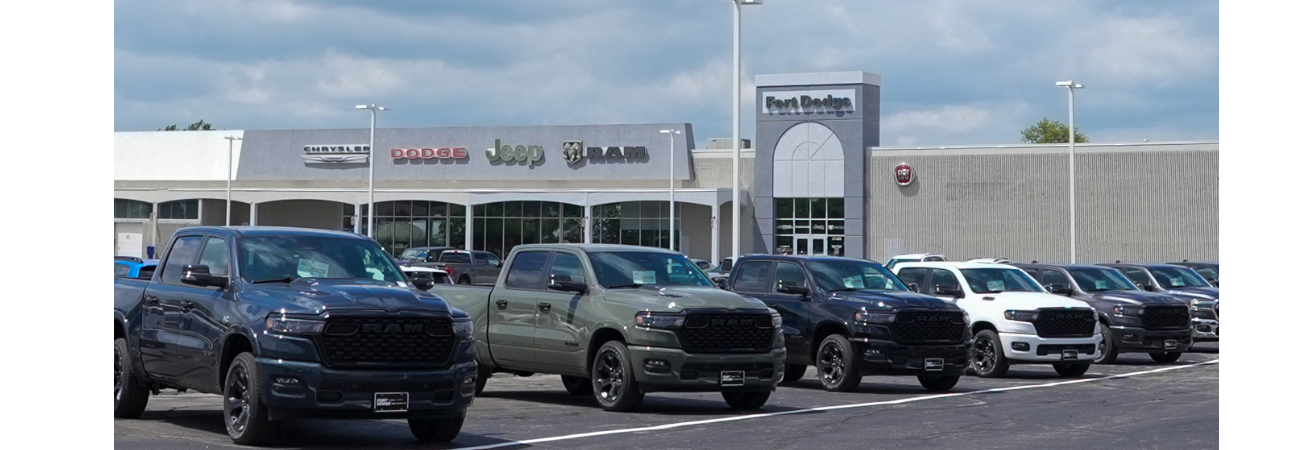
If you live near Fort Dodge, try these safe checks while parked before booking service. When the issue points to the vehicle’s infotainment system, dealership technicians can find the real cause.
Key Takeaways
Restart the iPhone or Android phone and vehicle display system, then check software updates, permissions, volume, and connection settings.
For wired connections, use a reliable data-capable USB cable and the vehicle’s designated smartphone port; for wireless connections, enable Bluetooth, Wi-Fi, and related settings.
Test another compatible cable or phone to determine whether the issue follows the device or points to the vehicle’s infotainment system.
Schedule dealership service if multiple phones fail, the USB port is damaged, the center display freezes or reboots, or Bluetooth will not pair.
Bring your phone, vehicle, cable, error message, and troubleshooting results to help technicians diagnose the problem faster.
Quick Apple CarPlay Fixes
Start with the iPhone. Open Settings > Siri & Search and confirm it’s enabled. Check the iOS version, install available software updates, and reconnect the phone.
For a wired connection, use a genuine Apple Lightning cable or reliable USB cable that supports data transfer, not just charging. Inspect both ends for bent connectors or worn insulation. Then try the designated USB port in your owner's manual. The center display should recognize the phone connection.
Next, restart your iPhone and the vehicle's audio system. If CarPlay still won't appear, open Settings > General > CarPlay, select the vehicle, and choose “Forget This Car.” Pair it again while parked. Also check Settings > Screen Time and Content & Privacy Restrictions, since they can hide or block CarPlay.
When CarPlay Connects but Keeps Dropping
A worn cable, loose USB port, low battery, or outdated phone software can cause intermittent connections. Try a second compatible cable and see whether the problem follows the cable or stays with the vehicle port.
For a wireless connection, enable Bluetooth and the vehicle's wireless network. For wireless CarPlay, keep the phone close during setup and testing. In Settings > Wi-Fi, confirm Auto-Join is enabled. If possible, test another iPhone before assuming the vehicle's audio system is at fault. Change connection settings only while parked. A dropped map or call is inconvenient, but adjusting a phone while driving creates a bigger problem.
Fixing Missing Apps, Sound, Calls, and Navigation
Raise both the phone volume and the vehicle's media volume. Then confirm the correct audio source is selected on the touchscreen or radio controls.
If calls don't come through, review Focus and Do Not Disturb settings. Missing music, maps, messages, or voice commands can also cause audio issues. Confirm the app supports CarPlay and has permission to use location, microphone, notifications, or cellular data as needed. The center display and available controls vary by vehicle model and trim.
Android Auto Troubleshooting for Connection and App Problems
Start by updating Android Auto, Google Maps, and the phone's operating system. During setup, unlock the phone and accept the requested permissions. For wireless setup, enable Bluetooth, Wi-Fi, and location, then test the connection.
For a wired connection, choose a short, high-quality USB cable that supports reliable file transfers. Use the vehicle's designated smartphone port, then restart both the phone and vehicle display system.
If the connection remains stuck, open Android Auto Settings and remove the vehicle from the previously connected cars list. Pair it again from the beginning. Phone menus differ across Samsung, Google Pixel, Motorola, and other brands, so wording may vary.
What to Check When Android Auto Disconnects or Has No Audio
Check media volume and the selected vehicle audio source first, since Android Auto may appear on the center display without sound. Review permissions, notification settings, and battery optimization controls. Battery-saving modes can stop Android Auto from running in the background.
Delayed maps or a frozen center display may point to weak phone service or location settings. An outdated Google Maps app can cause similar problems. Test a compatible cable or another phone, and document which combination provides the best phone connection. That record can make diagnosis faster if service is needed.
Clear the App Cache Only After Basic Checks
Clearing the Android Auto app cache can help when the app repeatedly fails to load, but try updates, restarts, and re-pairing first. On many phones, find this option under Settings > Apps > Android Auto > Storage. Avoid clearing app data unless you're ready to complete setup again.
When These Fixes Fail, Your Dealership Can Find the Real Cause
Basic phone checks have limits. Schedule service if both Apple CarPlay and Android Auto fail across multiple phones, the USB port feels loose or damaged, the center display freezes, the system reboots, or Bluetooth won't pair.
Also contact the dealership if the issue began after a battery replacement, repair, software updates, or a change in vehicle Settings. Technicians can inspect the infotainment system, center display, USB hub, wiring, microphone, and speakers. They can also check firmware and applicable updates from the vehicle manufacturer. Fort Dodge Chrysler Dodge Jeep Ram Fiat can also help with Uconnect connected vehicle services and supported in-vehicle features.
Signs the Vehicle Needs Professional Inspection
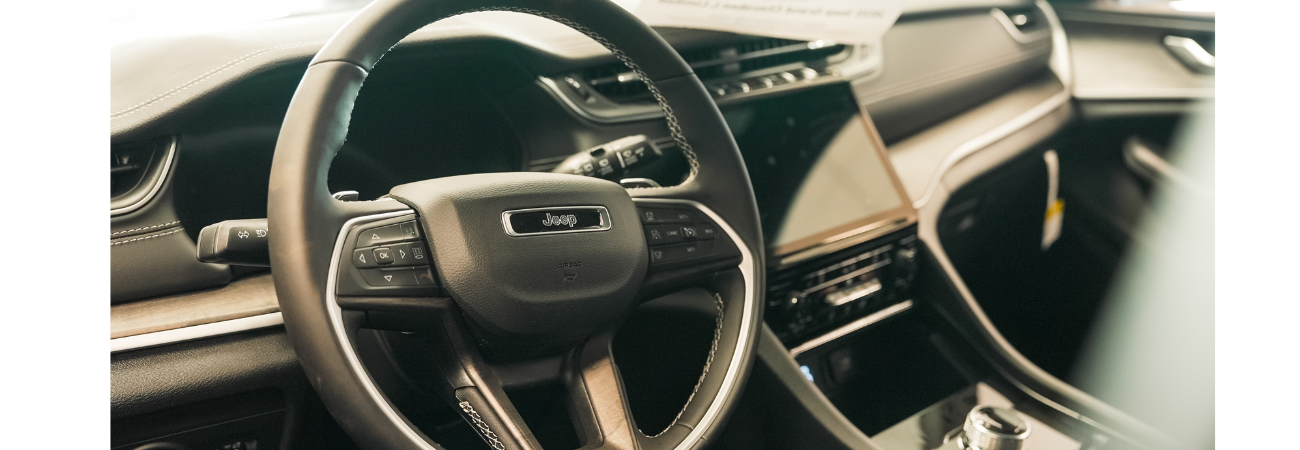
A phone connection problem usually changes when you test another cable or device. A vehicle issue often affects multiple phones, connection types, or the screen and audio system itself. A blank or repeatedly rebooting center display points beyond a phone or cable.
Don't force a damaged connector into place. Repeated system restarts, blank displays, nonworking steering-wheel audio controls, and audio issues also deserve professional attention.
A Quick Checklist to Bring to Your Service Appointment
Bring these details with you:
Your phone model, such as an iPhone, and operating system version.
The vehicle year, model, and whether the connection is wired or wireless.
The exact error message, apps affected, and when the problem began.
Every cable and port you tested.
Whether another phone connected successfully.
These details help the service team avoid repeating basic tests and narrow the cause sooner.
Frequently Asked Questions
Why won’t Apple CarPlay connect to my vehicle?
Check that Siri is enabled, your iPhone and vehicle software are updated, and you are using a reliable data-capable cable or the correct wireless settings. Restart both devices and remove the vehicle under Settings > General > CarPlay before pairing again.
What should I do if Apple CarPlay keeps disconnecting?
Try another compatible cable and inspect the USB connectors and port for damage or looseness. For wireless CarPlay, keep the phone nearby and confirm Bluetooth, Wi-Fi, and Auto-Join are enabled.
Why is Apple CarPlay connected but there is no sound?
Raise both the iPhone volume and vehicle media volume, then confirm the correct audio source is selected. Also review Focus, Do Not Disturb, app permissions, and whether the affected app supports CarPlay.
When should I schedule Apple CarPlay service?
Schedule service if CarPlay and Android Auto fail with multiple phones, the center display freezes or repeatedly reboots, the USB port is damaged, or Bluetooth will not pair. These symptoms may indicate an issue with the vehicle’s infotainment system, wiring, USB hub, or display.
What information should I bring to a service appointment?
Bring your phone model and operating system version, vehicle information, connection type, error messages, affected apps, and the cables or ports you tested. Note whether another phone connected successfully so technicians can narrow the cause more quickly.
Get Back to Reliable Phone Connectivity
Restart the phone and vehicle electronics, check permissions and wireless settings, and try a reliable data cable. Update software, test another phone or cable, and always perform those checks while parked.
If problems continue, including a blank, frozen, or malfunctioning center display, schedule a vehicle service appointment with the Fort Dodge Chrysler Dodge Jeep Ram Fiat team. The team can inspect wireless CarPlay, USB ports, audio, or controls.
Drivers shopping for newer connectivity can also explore the 2026 RAM 1500 with Apple CarPlay and Android Auto.